

🔁 How to Reschedule a Lesson on Swapadilly Learning
We know life can get busy and juggling school, work, and family isn’t always easy. Sometimes you might need to move a lesson, and that’s totally fine! At Swapadilly Learning, we want learning to be flexible and stress-free, not another thing to worry about. This guide explains how to reschedule a lesson on our platform. Please remember that rescheduling is only allowed if it is done 12 hours or more before your scheduled class. Follow these simple steps to adjust your schedule quickly and easily, while keeping your spot with no hassle.
✅ Step-by-Step Instructions
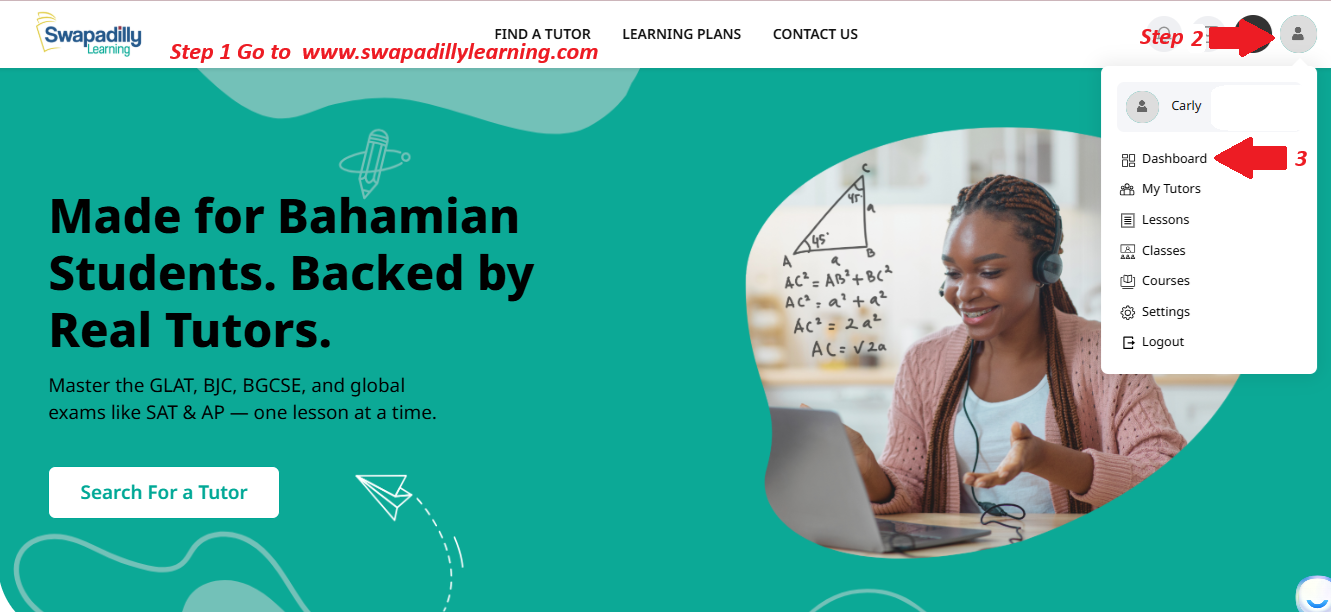
Step 1
Go to www.swapadillylearning.com.
(See the red arrow labeled "1” in the image above.)
Step 2: Click Your Profile Icon
In the top-right corner, click the profile icon (👤).
(See the red arrow labeled "2” in the image above.)
Step 3: Go to Your Dashboard
From the drop-down menu, click "Dashboard.”
(See the red arrow labeled "3” in the image above.)
Step 4
In the left menu, click Lessons under the Booking section.
Step 5
Check the countdown timer at the top to see the remaining hours before your next class session.
Step 6
Choose between the Listing or Calendar view to find your lesson.
Step 7
Click the Reschedule icon (circular arrow) next to the lesson you want to change. (See "Step 4-7.”)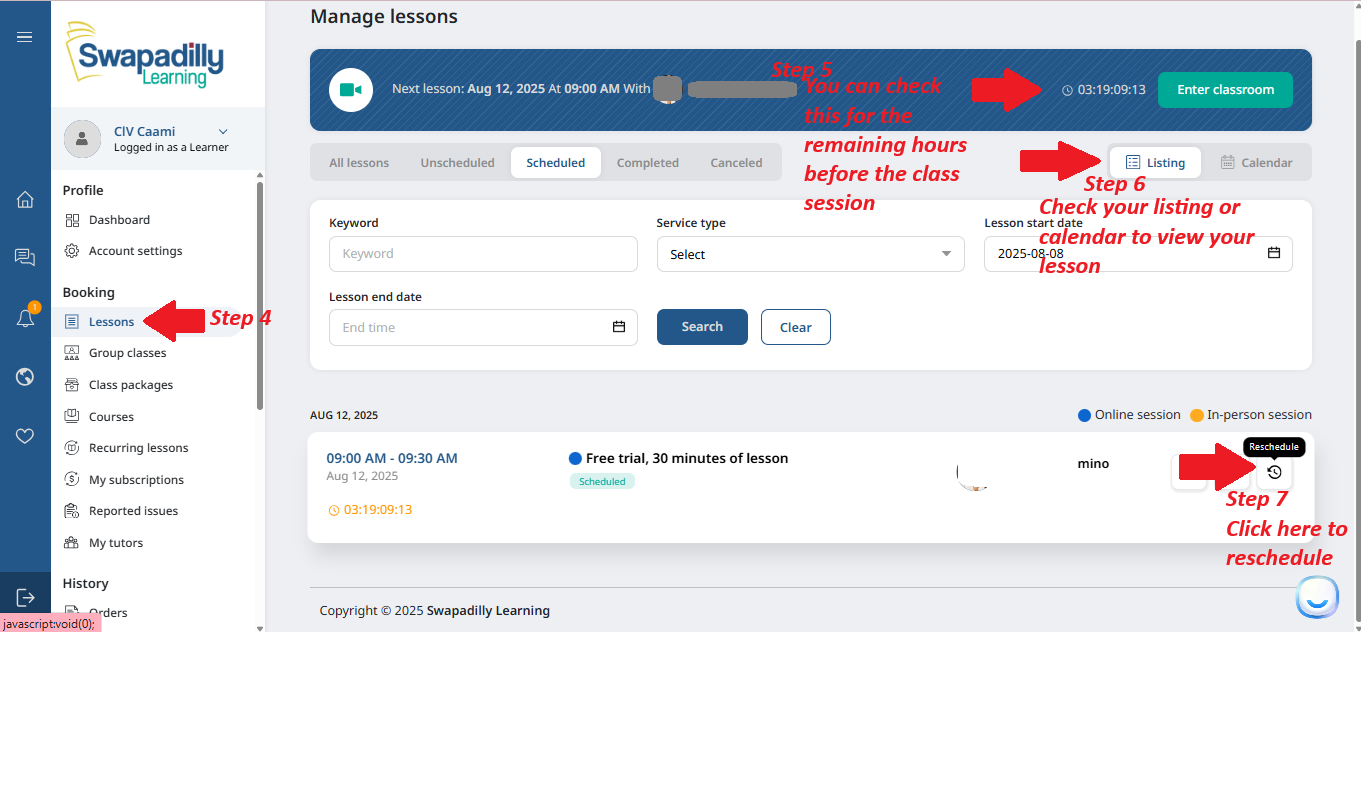
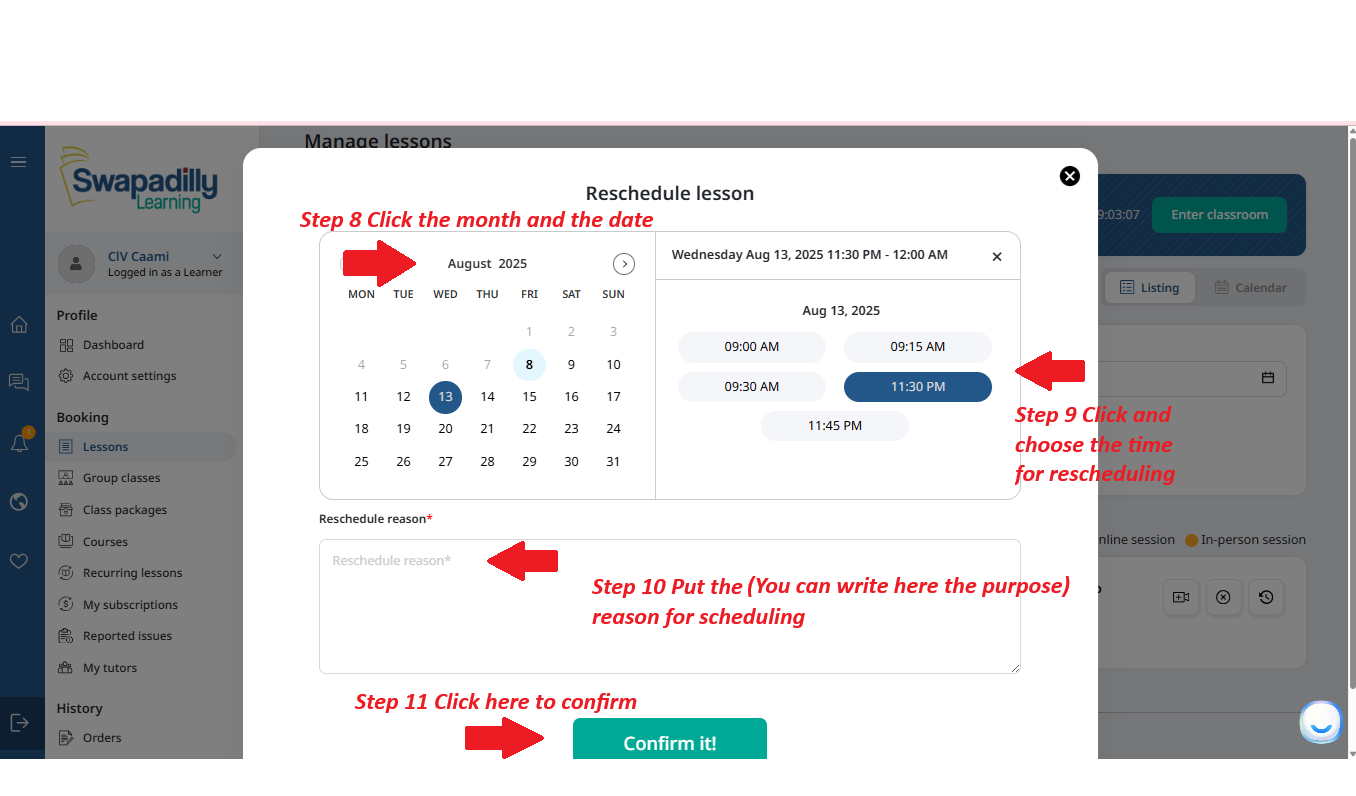
Step 8
In the calendar pop-up, select the month and date you want to move the lesson to.
Step 9
Select the new time slot for your rescheduled lesson.
Step 10
Enter the reason for rescheduling in the text box.
Step 11
Click Confirm it! to finalize the reschedule request. (See "Step 8-11.”)
Step 12
A green notification saying "Action performed successfully" will appear at the top right of the page. (See "Step 12.”)
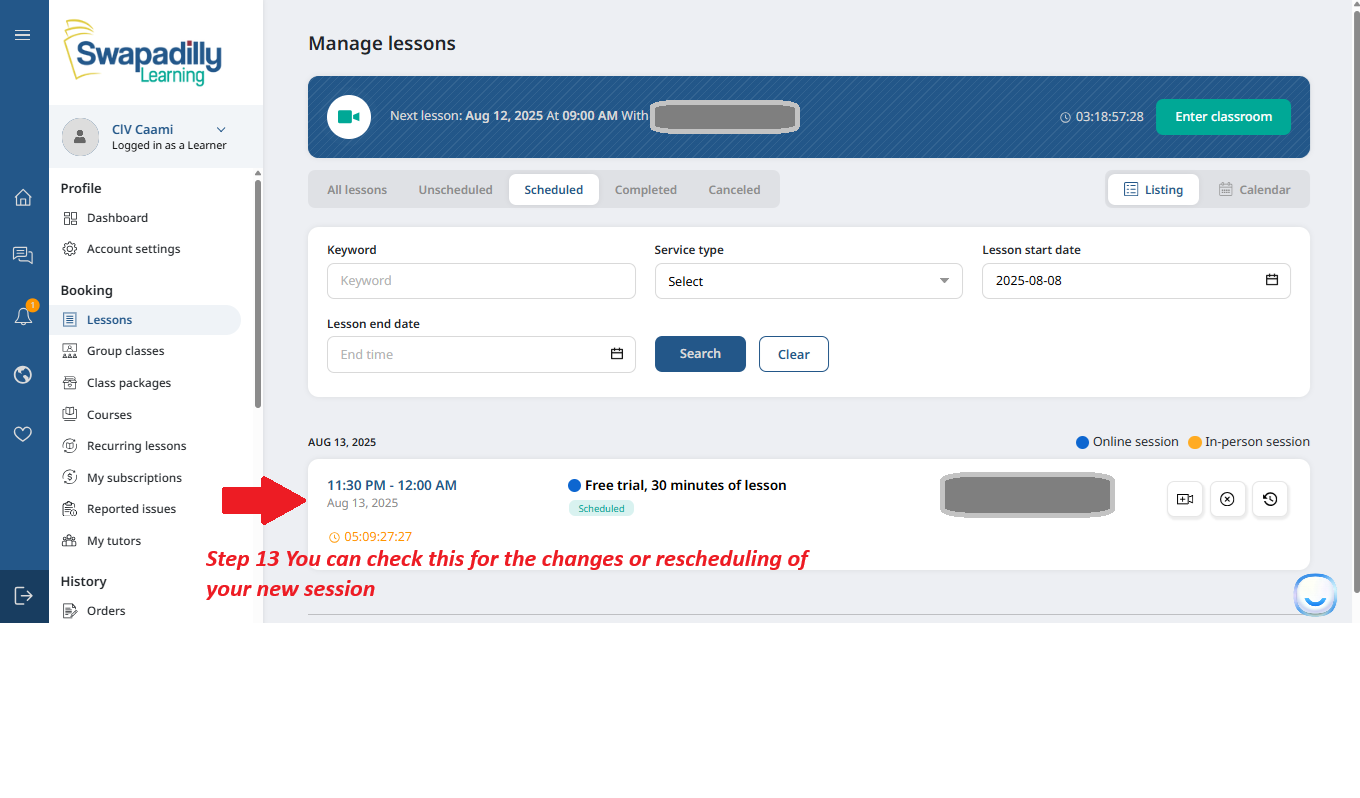
Step 13
Return to your Lessons tab to verify the new session date and time. Here, you can also check for any changes or updates made to your schedule. (See "Step 13.”)
You’ll receive a confirmation email, and your lesson will be updated on your calendar.
Step 14
You can message the tutor directly using the Swapadilly messages platform.
⏰ Important: Rescheduling is only allowed if done 12 hours or more before your scheduled class. If you try to reschedule within 12 hours of the lesson start time, the system will not allow it.
If you need urgent help, contact support or message your tutor directly through the platform.